
For the latest updates, see EPR Release Notices.
For EPR related videos, check out Digital Education's YouTube Channel.
For the latest updates, see EPR Release Notices.
For EPR related videos, check out Digital Education's YouTube Channel.
Pre-Admission Visit
Covered in this topic:
Creating a Pre-Admission Visit
Changing to Pre-Admission Status
A pre-admission visit status is required when tests need to be ordered, specimen labels printed, or documentation created, prior to the visit date.
Note: For some areas, during regular visit creation, the preadmit option will automatically display (without launching the Pre-Admission Registration link).
Creating a Pre-Admission Visit
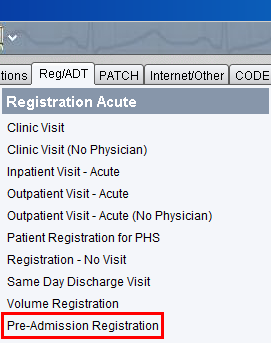
1. From the main desktop, Reg/ADT tab, select Pre-Admission Registration.
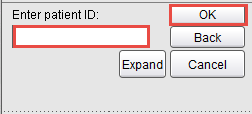
2. Enter the patient ID and click OK. If the patient has not yet been registered, proceed with full patient registration and then proceed to step 3 below.
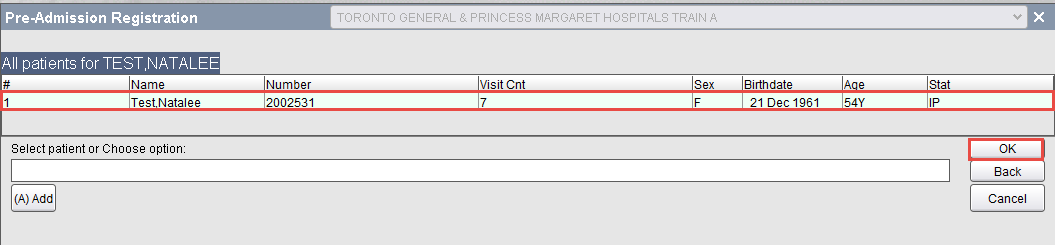
3. Select the patient from the list and click OK.
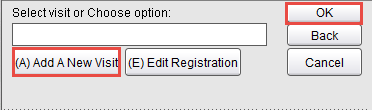
4. Choose Add a New Visit and click OK.
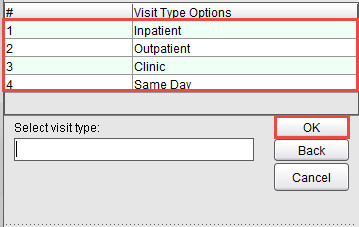
5. Select visit type and click OK.
6. Enter n for now as the Admission Date/Time.
7. Complete all visit information fields, similar to other visit creation. When completed, click Accept to save your work.
Changing to Pre-Admission Status
When a clinic uses the PHS scheduling system to create visits, the EPR visit is automatically created in EPR as a pended CP clinic visit. If labels need to be printed or work needs to be done in the visit prior to the visit, it can be converted to an active pre-admission visit. This does not activate the clinic visit or bill the patient.
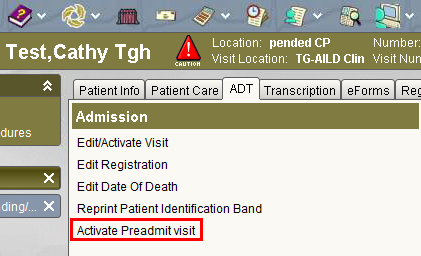
1. From the patient desktop of the pended clinic visit, ADT tab, select Activate Pre-Admit Visit.
2. Enter the Preadmit Date/Time as n for now, and click OK.
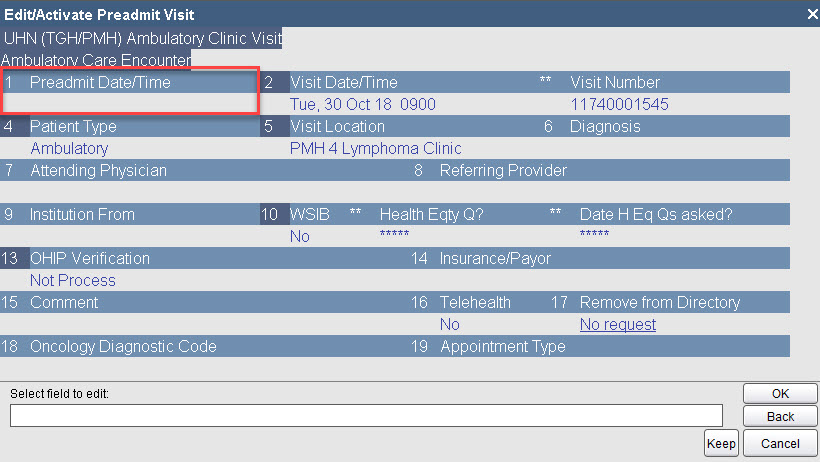
3. Click OK again, and then Accept.
4. Choose Preadmit Visit to activate visit status to pre-admission.

5. Choose Accept Visit Activation Time.
6. Proceed to order tests, print labels, etc. as per your protocol/workflow.
7. When the patient arrives for their visit at the clinic, you must follow the regular steps to activate the clinic visit. See topic ADT – Visit Activation.