
For the latest updates, see EPR Release Notices.
For EPR related videos, check out Digital Education's YouTube Channel.
For the latest updates, see EPR Release Notices.
For EPR related videos, check out Digital Education's YouTube Channel.
Order Entry Overview
Covered in this topic:
The Order Entry link may be found under the Patient Desktop’s Patient Shortcuts, and this is where procedures are submitted into EPR for processing – whether it is a new item, or a change, hold or discontinue of an existing procedure.
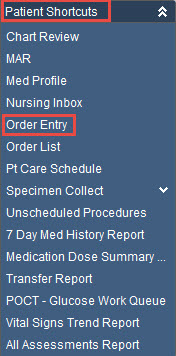
Procedures include events that need to be performed on, administered to or processed for patient (i.e. labs, medical imaging, diets, medications, scheduled transfers and discharges). An Order is the request for the procedure in concern.
Practice should be that physicians enter their own orders into EPR. However, it is common for nurses and administrative staff to be requested to enter it into EPR on behalf of them to assist with workload or if he/she does not have access to EPR at the time (e.g. in the OR). Aside physicians, senior medical students can also place in orders into EPR with the exception of medication orders that need the co-signing of a supervising physician.
Critical: When submitting orders for the Rapid Response lab, always practice submitting those in first before entering in the additional routine labs for the same patient.
Critical: Patient’s allergies and adverse reactions must be documented before any orders are entered into EPR. See here for additional information on allergies.
Since Order Entry is done through the Patient Desktop, it is indicative that the procedure naturally be attached to the relevant active visit. If an Order is attempted to be entered into a discharged, cancelled or no-show visit, it will not submit the event and be accessible by the specimen collection staff.
If a non-Prescriber is entering orders in EPR on behalf of a Prescriber, they will first need to provide authorization details. See topic Order Author Authority.
The Adding Order screen is organized into two main sections:
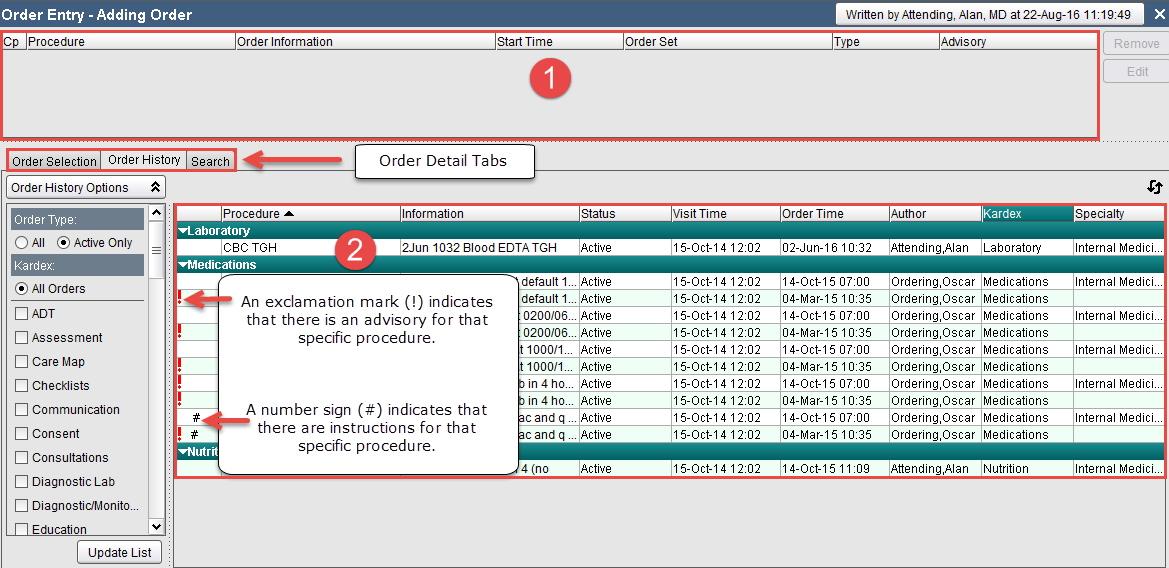
1. Order Preview section
At the top of the screen is where your orders populate as you select your orders, functioning exactly to how an online shopping cart works. Orders seen here are not submitted yet, and therefore, has the opportunity to be tweaked or removed before final submission.
2. Order Search section
This section is where you select your procedures from or see the order history for the respective patient’s visit you are in.
The section is organized under three tabs:
Order Selection – where procedures can be selected from the folders. Upon clicking any (sub) folder, the right side of screen will simultaneously display the contents of the folder. See topic Order Selection Tab for more information. Note: The top folder always is the specialty folder of the respective order’s authoring physician’s/unit’s commonly ordered tests.
Order History – where all the active/submitted orders are alphabetically listed for the specific visit in concern. This is where Change Orders, Hold Orders, Discontinue Orders are all processed. Critical: it is imperative you check the Order History tab before placing new entries to avoid duplication and conflicting orders.
Search – If you are unable to locate or would rather search for the prescribed procedure, you may use this tab to search by either entering the full name or performing a partial word search using the wildcard symbol (-). See topic Order Search Tab for more information.
In EPR’s Order Entry, many of the procedures include pre-defined form(s) that are required to be completed/acknowledged through the Order Selection section of EPR. For more information on Order Sets/forms at UHN, visit this page.