
For the latest updates, see EPR Release Notices.
For EPR related videos, check out Digital Education's YouTube Channel.
For the latest updates, see EPR Release Notices.
For EPR related videos, check out Digital Education's YouTube Channel.
RN Change Orders
The RN Change Order is a type of medical directive that is used by an RN to change the order times for a scheduled order without the need for a physician’s change order.
Note: This function should not be used to change the dose, route or frequency of the order but only to be used to change the scheduled times.
1. From the Patient Desktop, Patient Shortcuts menu (left hand side of the desktop, click Order Entry.
2. For the Order Type, click Verbal. Click on Order Time if you wish to change it in order to accurately reflect the correct date and time you received the order. If you just received the order, leave it as is. The Order Time default is the current date and time.

3. Click the Order Author field and type RNC- or RN, C- and then click Search to display the unit change order list.
4. Click on the appropriate RN change order unit and click OK.
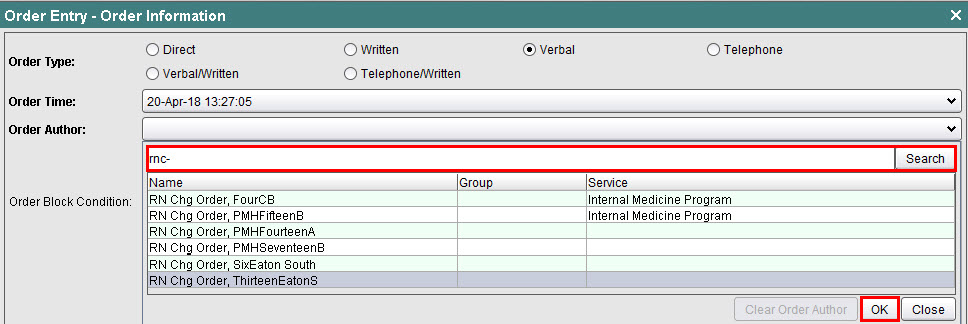
5. Then click OK (bottom right hand of screen) to proceed.
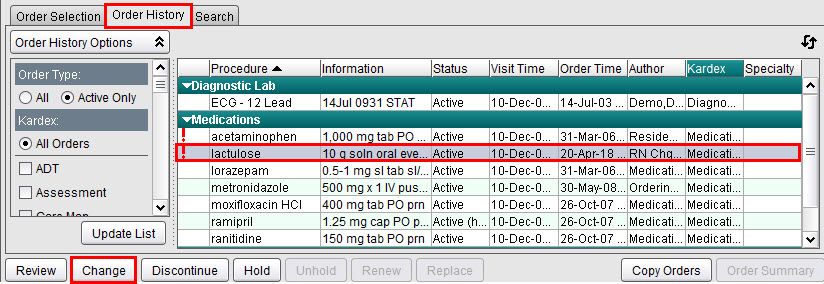
6. From the Order History tab, select the medication to be changed and then click on the Change button on bottom left.
7. Click OK to accept the default time of now.
Note:A list of events/doses will appear above. Blue events have already occurred and will not be affected by your Change Order. Black events are upcoming/undocumented and will have the change applied to them. Do not select any event(s) here. Use now as time to start and click OK.
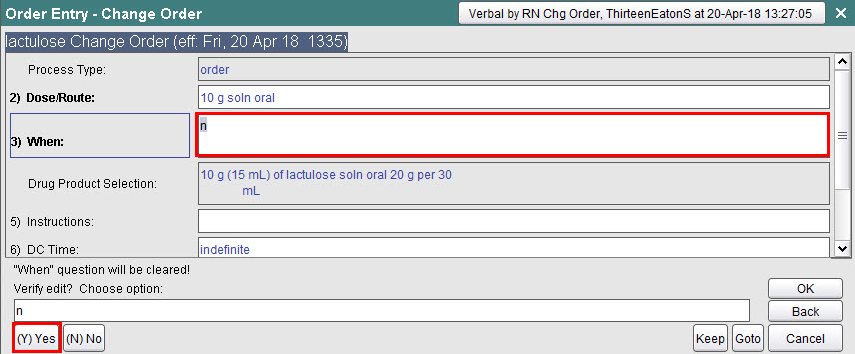
8. Review the existing frequency in the When field to note the original frequency, and then select the field.
9. The original frequency is now cleared. Choose Yes to confirm that the When field should be cleared and click OK (right hand side, bottom of screen).
10. Build the original frequency using the options provided; click OK. See topic Order Frequencies for help with this.
11. Next, enter in one of the required scheduled times into the Transaction Line and click OK.

12. EPR will automatically calculate the necessary scheduled times according to the UHN SMAT. The When field will display the font in black text to indicate a change; click OK to return to the Order History tab.

13. Complete the standard process to submit the changes by clicking on Order Summary and then Accept Order.