
For the latest updates, see EPR Release Notices.
For EPR related videos, check out Digital Education's YouTube Channel.
For the latest updates, see EPR Release Notices.
For EPR related videos, check out Digital Education's YouTube Channel.
Printing Patient Labels
Covered
in this topic:
Where to Access Label Print Options
Printing Patient Identifier Label
Reprinting Patient Identification Band
Printing Patient Addressograph Label
Where to Access Label Print Options
Patient labels can be printed from the Main Desktop or from the Patient Desktop:
1. Main Desktop - Print Functions tab
- If you wish to print for multiple patients at once, use this avenue.
- You will need to define the print parameters by selecting patient name(s) from a list in order to generate the report.
2. Patient Desktop – ADT tab
- To print for a specific patient only, use this avenue
- You will need to search/open the visit before beginning.
- The report will be just for that patient so report parameters will already be defined.
Printing Patient Identifier Label
Patient Identifier Labels are used to label plastic bags that have been prepared ahead of time with medications for a patient.
This particular label type can only be printed from the Main Desktop, as follows:
1. From the Main Desktop, navigate to the Print Functions/Reports tab. Under the Print Labels banner, click on Patient Identifier Label.
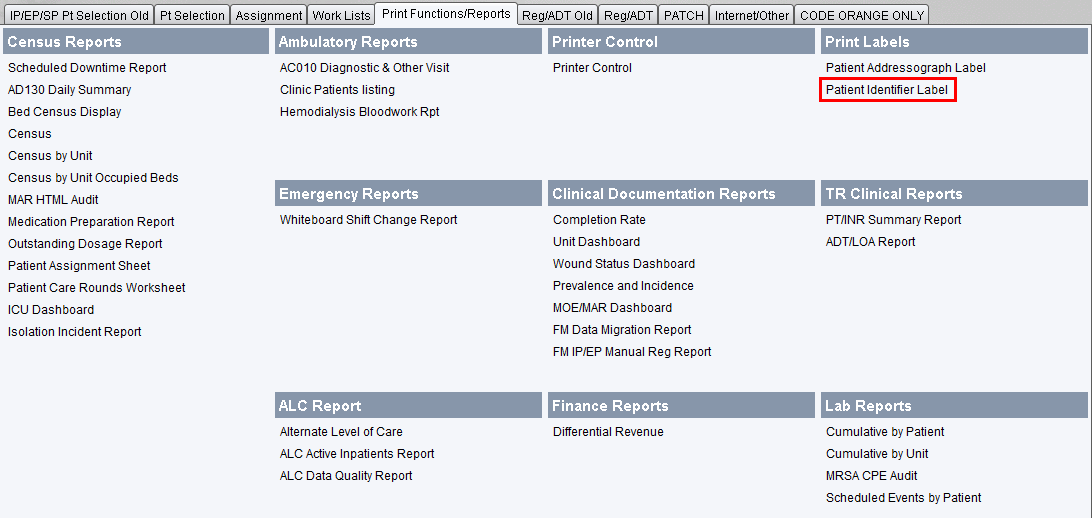
2. Choose the (I) Insert button to begin adding patient names to your printing queue. Note that you can only select one patient name at a time. Also, depending on your access level, upon choosing the Insert button, the system might require you to first indicate the required patient type (i.e. Active Inpatient). Make the necessary selections and click OK.
3. Select the patient you wish to print labels for and click OK.
4. Continue to select any other patient names, one at a time, for whom you wish to print labels for and click OK each time.
5. When you are done selecting all of your patients, click OK to proceed.
6. The next screen will display the list of all patients you selected, click OK to proceed.
7. Choose Accept to print.
Reprinting Patient Identification Band
To reprint a patient’s Identification Band, you will need to be on the patient’s desktop.
1. Under the ADT tab, navigate to the Admission heading, and click Reprint Patient Identification Band.
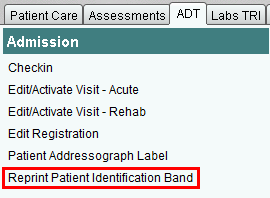
2. The system might prompt you to select the appropriate Print Queue. Make your selection and click OK.
3. Select any item(s) you need to edit, if applicable, and make the necessary changes. If you do not need to make any edits, click OK.
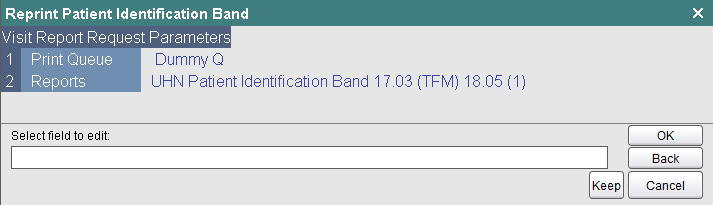
4. Click Accept to print.
Printing Patient Addressograph Label
Patient Addressograph Labels are printed upon admission and includes patient demographics information such as Name, DOB, MRN and Attending physician.
These labels can be printed from the Main Desktop for multiple patients, or from within the visit for one patient at a time.
1. From the Main Desktop, navigate to the Print Functions tab. Under Print Labels section, click Patient Addressograph Label.
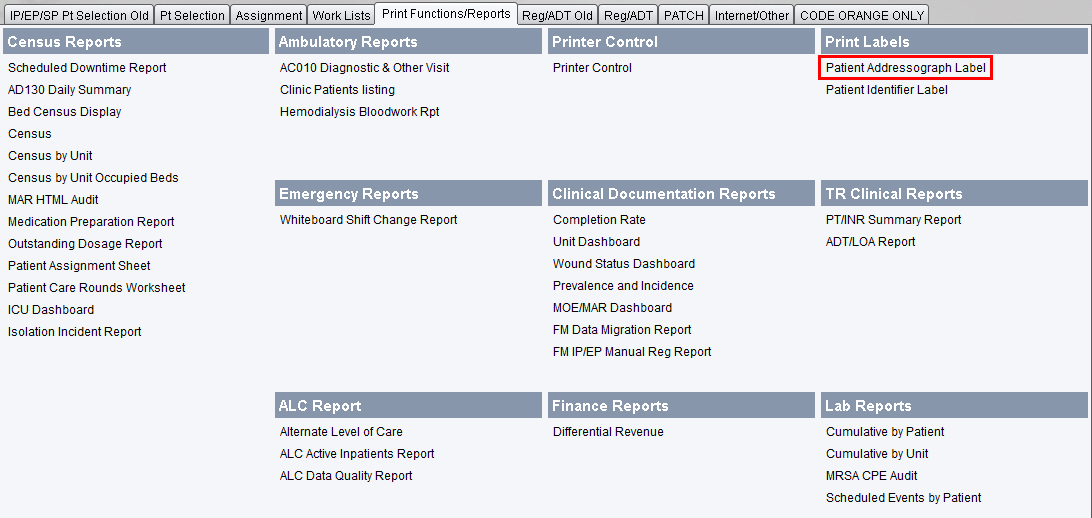
a. Alternatively, open the visit and go to the ADT tab under the Admission heading. Steps 2-3 below are unnecessary if you take this avenue and start from within the patient visit.
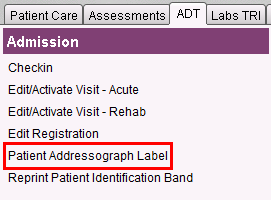
2. From the main desktop option you'll need to choose (I) Insert to add patient names to your printing queue.
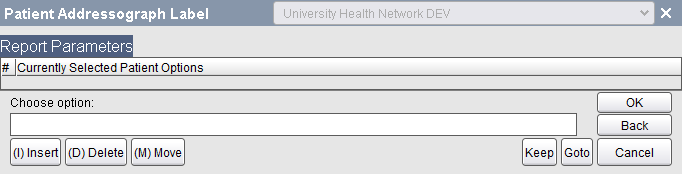
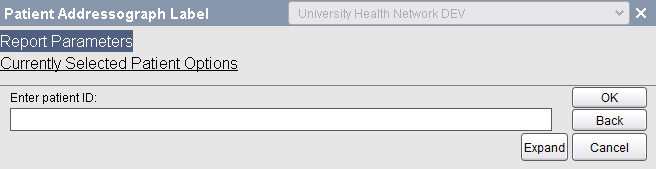
3. For each patient, Enter patient ID and click OK; Select patient and click OK. You can add multiple names for printing, but they would need to be inserted one at a time. (You would repeat this step for each patient you wish to print labels for). After adding the last patient, you would click OK. You will see a list of all the patient's you've added. Click OK again.
4. Enter the number of copies and click OK.
5. Choose Accept to print.
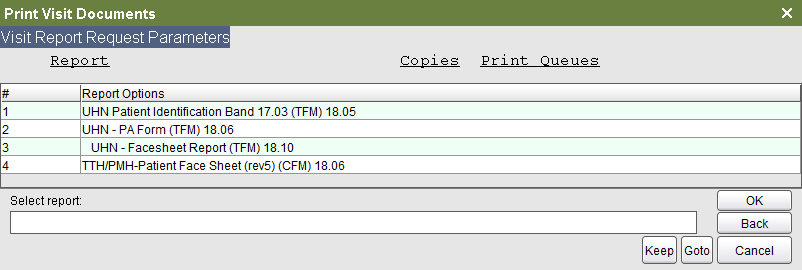
1. Open the patient's desktop, and within the ADT tab, click on Print Visit Documents under the ADT Review banner.
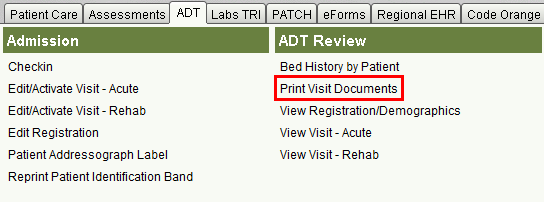
2. Select report option and click OK.
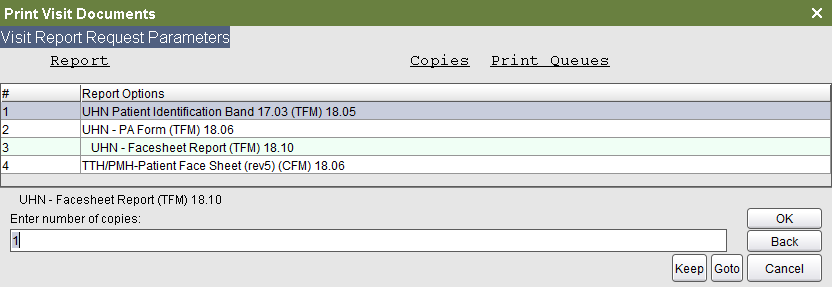
3. Enter the number of copies you require and click OK.
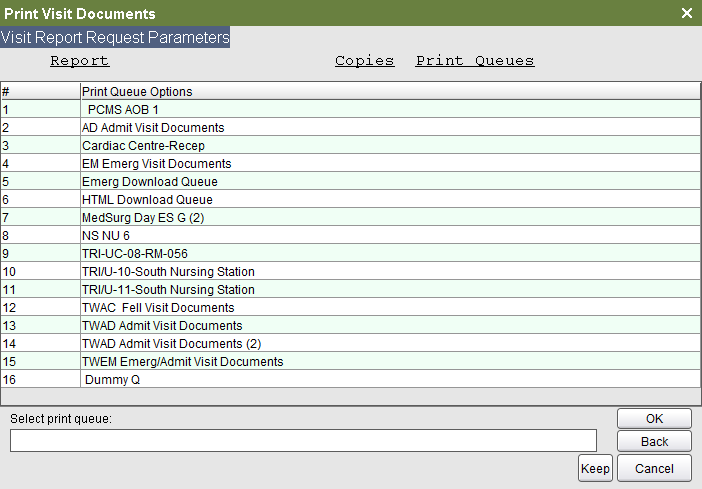
4. Select Print Queue Option.
5. You will be brought back to the list of report options. Above the list, you will see the Visit Report Request Parameters. If you need to print another report, make a selection and repeat steps 3 & 4.
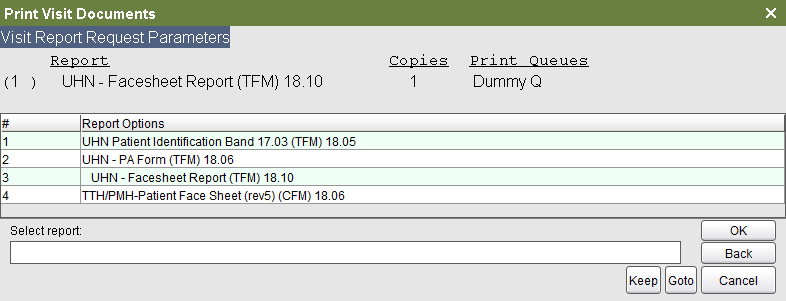
6. When you are done selecting you reports, click OK and choose (A) Accept on the next screen.