
For the latest updates, see EPR Release Notices.
For EPR related videos, check out Digital Education's YouTube Channel.
For the latest updates, see EPR Release Notices.
For EPR related videos, check out Digital Education's YouTube Channel.
Medication Restrictions
Covered in this topic:
Documenting Medication Restrictions
Editing Medication Restrictions
Deleting Medication Restrictions
Medication Restrictions are documented when certain medications are not to be given to the patient and/or specific administration routes are not to be used. The restriction details will be sent to the Nursing Inbox. This may require transcribing the restriction on relevant paper documentation as well.
Documenting Medication Restrictions
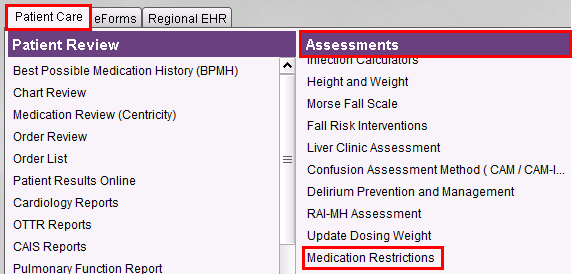
1. From the Patient Desktop, Patient Care tab, under Assessments, click Medication Restrictions.
Note: Senior Medical Students will not find this option on their desktop as they are not authorized to enter Medication Restrictions.
2. Click OK to accept the default time of now.

3. Choose Document Medication Restriction and click OK.
Note: If a prior medication restriction has been documented, choose Document Another Medication Restriction.

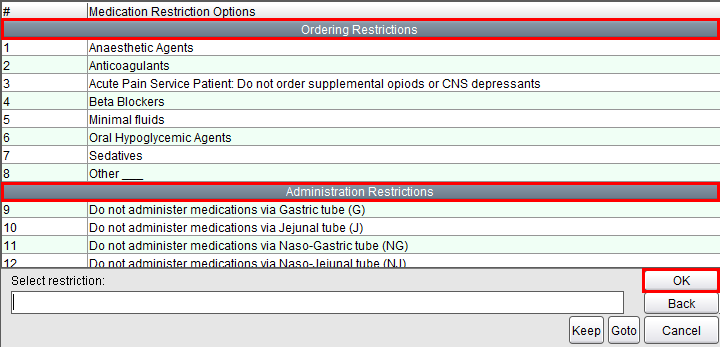
4. The restrictions are categorized as Ordering or Administration. Select a Medication Restriction from the list and click OK. To manually type a restriction, select Other__, which enables the entering of free-text.
Note: The image below does not list all the restrictions. While in EPR, scroll down to see the full list.
5. The Medication Restriction screen appears. Click OK to continue.
6. If additional medication restrictions are required, choose Document Another Medication Restriction and repeat the steps above. Or click OK to continue.

7. Review the Restriction details and click OK to continue.
8. Choose Accept to save.

The entered Medication Restriction will be visible on the Patient Dashboard Report as a future reference. This will not prompt an advisory when placing orders on restricted items. Thus, always check the Patient Dashboard and the Order History before placing any medication orders.

Editing Medication Restrictions
1. From the Patient Desktop, Patient Care tab, under Assessments, click Medication Restrictions (see image 1 above for Documenting Medication Restrictions).
2. Click OK to accept the default time of now (see image 2 above for Documenting Medication Restrictions).
3. Select the Medication Restrictions field.
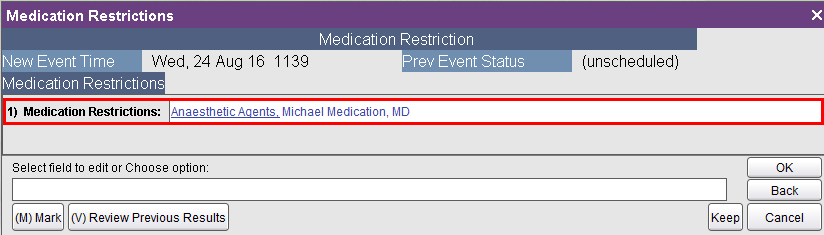
4. To edit the restriction, select the Medication Restriction and click OK.
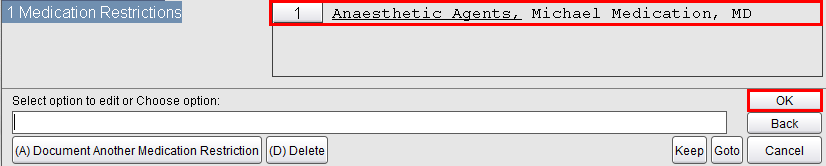
5. Select the Restrictions field.
6. The Medication Restriction Options list will appear. Select an option and click OK (see image 4 above for Documenting Medication Restrictions).
7. The new option will appear in the Restrictions field, in black text to indicate a change has been made. Click OK to continue.
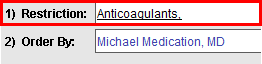
8. Click OK until you receive the Accept option. Click Accept to save.
Deleting Medication Restrictions
1. From the Patient Desktop, Patient Care tab, under Assessments, click Medication Restrictions (see image 1 above for Documenting Medication Restrictions).
2. Click OK to accept the default time of now (see image 2 above for Documenting Medication Restrictions).
3. Select the Medication Restrictions field.
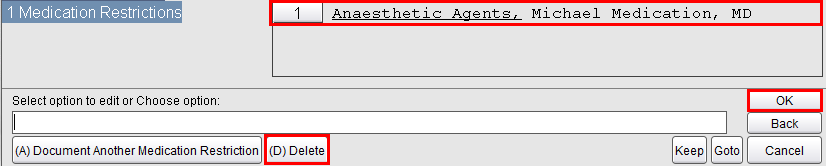
4. Be sure to choose Delete first, then select the Medication Restriction and click OK.
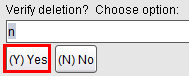
5. Choose (Y) Yes to verify deletion.
6. Click OK until you receive the Accept option. Click Accept to save.