
For the latest updates, see EPR Release Notices.
For EPR related videos, check out Digital Education's YouTube Channel.
For the latest updates, see EPR Release Notices.
For EPR related videos, check out Digital Education's YouTube Channel.
ESAS Assessment
When the ESAS is completed on paper, it must also be entered in EPR.
1. From the Patient Desktop, in the Assessments tab, click ESAS Manual Entry.
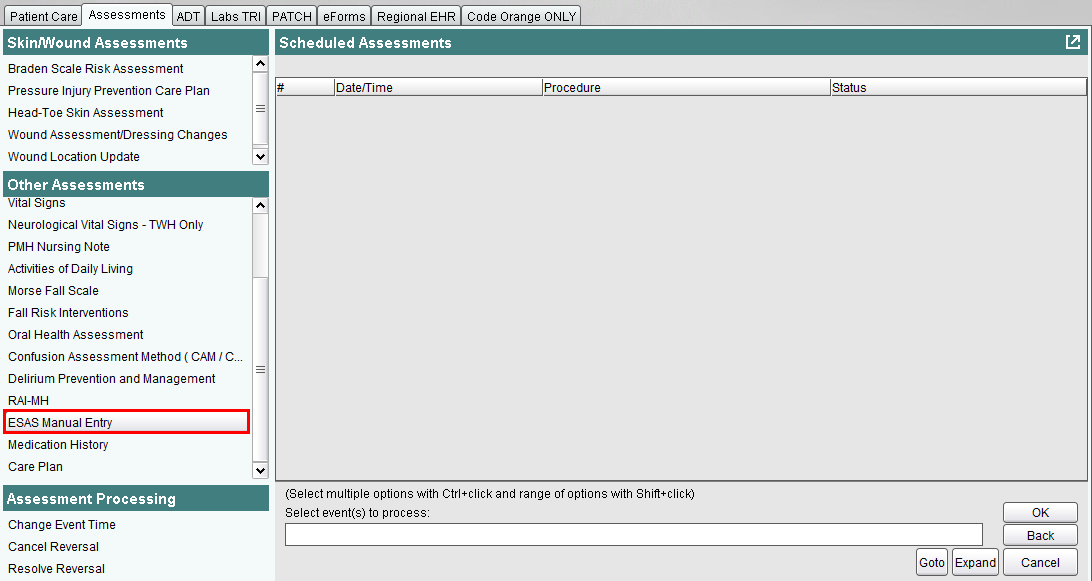
2. Enter the date and time the assessment was performed and click OK.

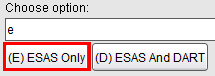
3. Choose (E) ESAS Only.
4. Select the score that reflects the paper record and click OK to continue to next field (the image below has not captured all assessment fields).
NOTE: Zero is indicated with option 11.

5. Once the fields are completed and OK has been clicked, choose Accept to save.
Note: If you want to go back to change a score, do not go back to the assessment on the patient desktop. Always change the score within the Patient Care Schedule.
See Correct, Supplement or Cancel Assessment Documentation or Reviewing Assessment Documentation topics for steps on handling existing assessments.