
You can make limited changes, as well as put a medication on
hold, using the Treatment Management Window.
Releasing a Medication on Hold
1. Double click on the desired medication
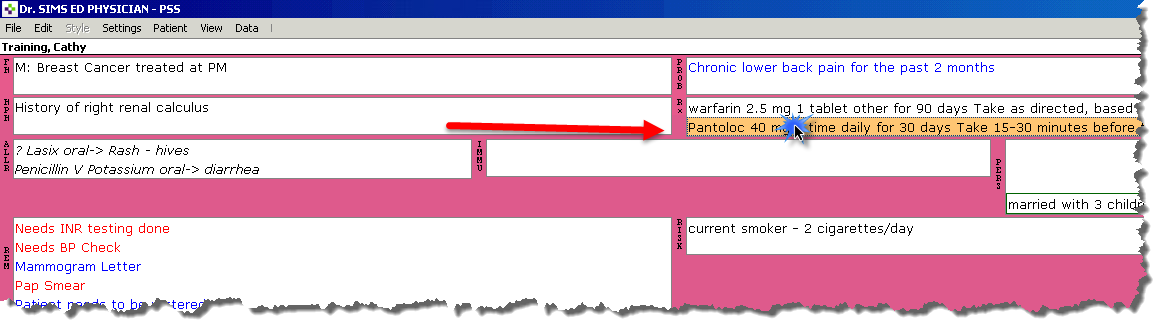
2. The
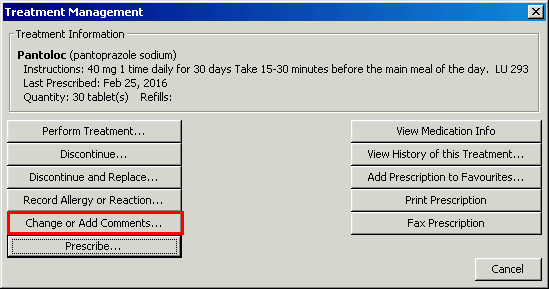
Treatment Management Screen appears.
Select the Change or Add Comments button.
3. The Change Treatment screen, listing your patient’s name, appears:
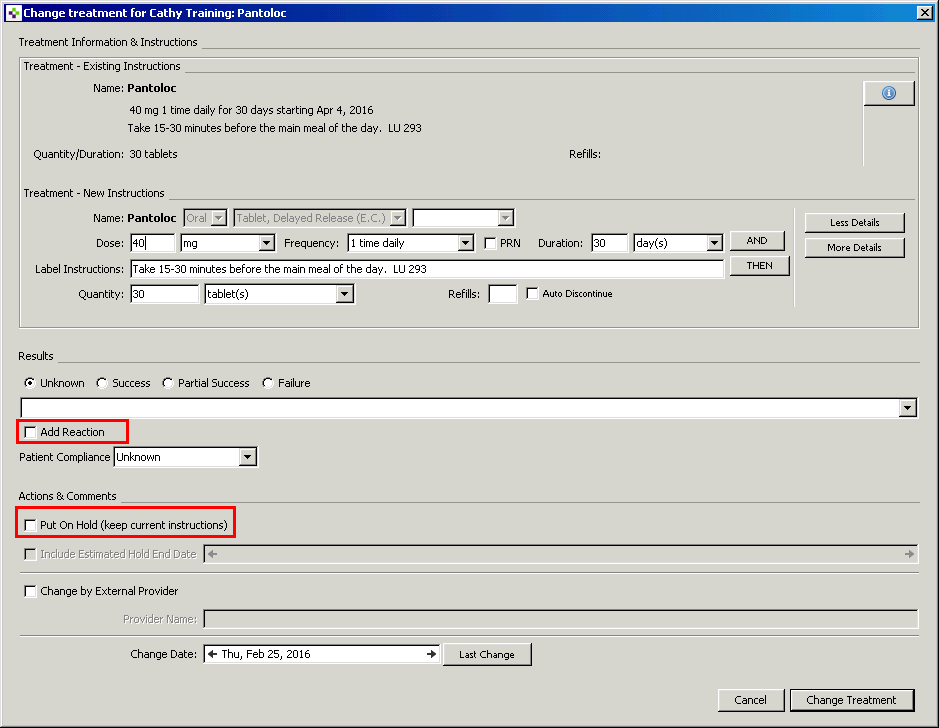
You can add a reaction or put medications on hold
· You can also
put a medication on hold by simply entering a Progress Note.
E.g., Warfarin: patient going for surgery.
· Use professional judgment as to whether to put the medication on hold or to enter a progress note
Note: Any
changes/additions will be posted to the chart.
· Do not change medication dosages or route changes. Use the Discontinue and Replace option for this purpose.
· It is not recommended that you make quantity change or create refills here
4. Select the Put On Hold(keep current instructions) button and click Put on Hold in the bottom right corner
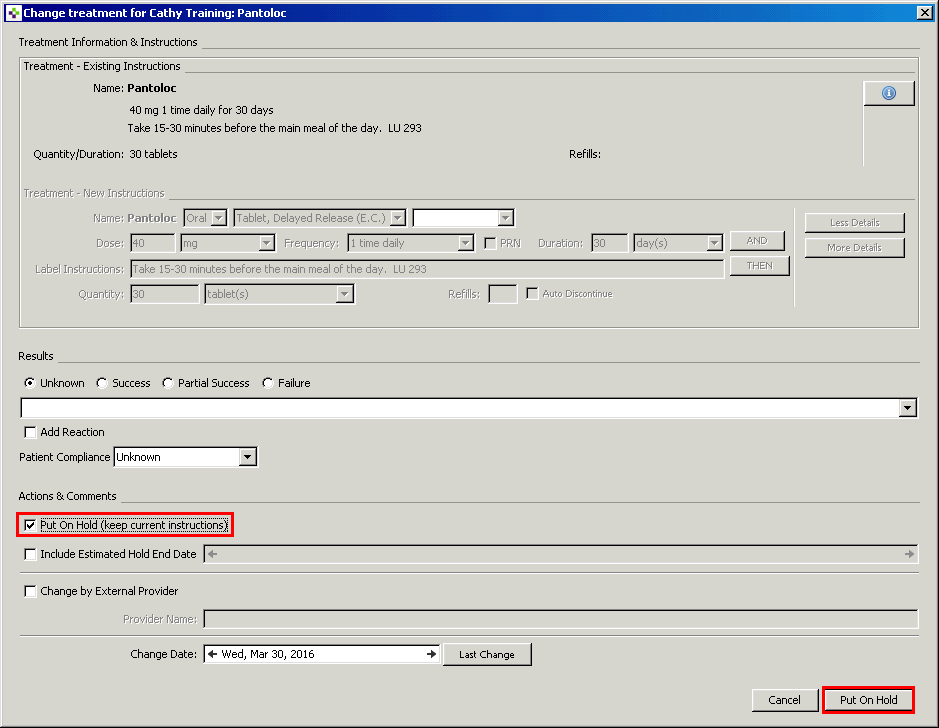
5. The progress note and CPP will have indicate that the medication is now on hold

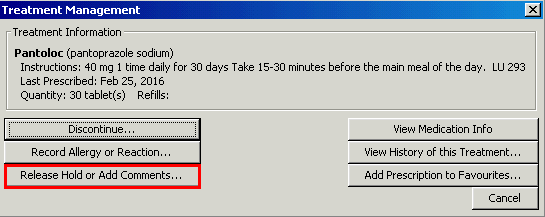
1. To release the hold, double click on the medication again. The Treatment Management window appears. Select Release Hold or Add Comments.
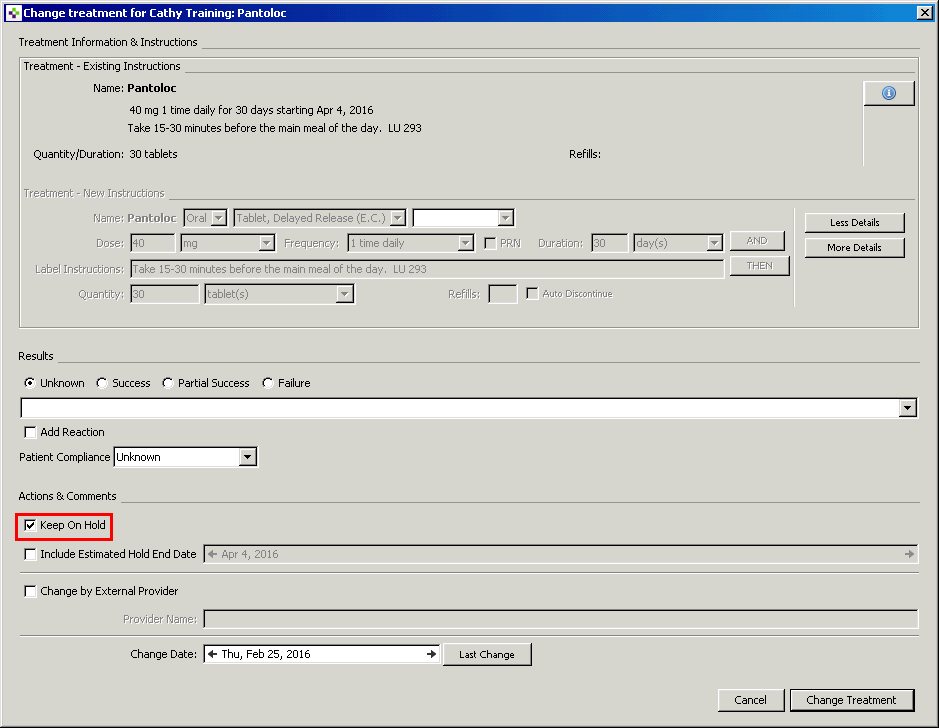
2. Uncheck the Keep on Hold option
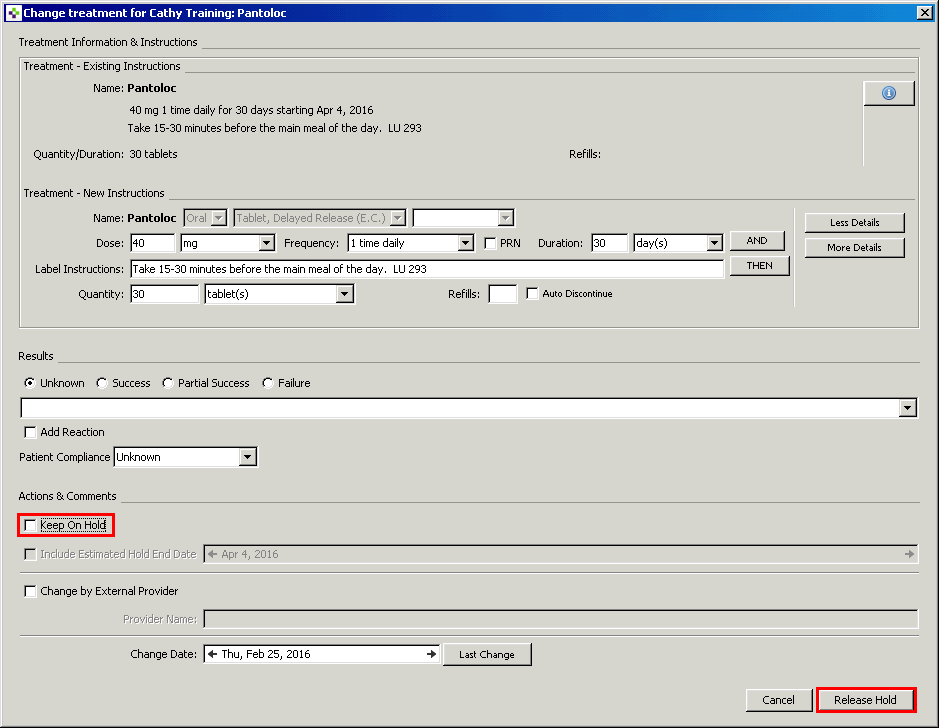
3. Select Release Hold.
4. There will now be notation in the chart the medication has been “Released from Hold.”


Learning powered by Digital Education