
· Use the Discontinue and Replace option if you are making any changes to a medication
· You can also this feature to discontinue and prescribe another medication
· Using this
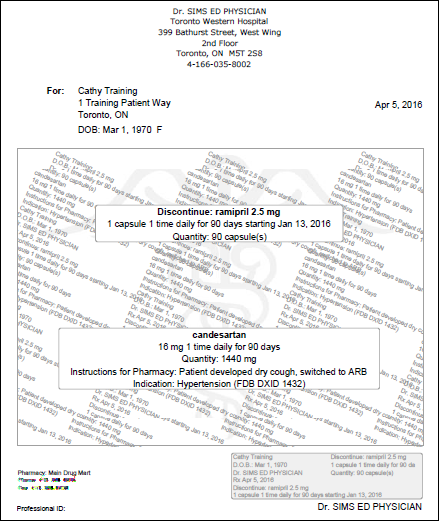
option is beneficial because it will print the discontinued
medication on the prescription resulting in
improved communication to pharmacy, especially for medication
changes
· Changes are made by re-ordering the medication or medication alternative
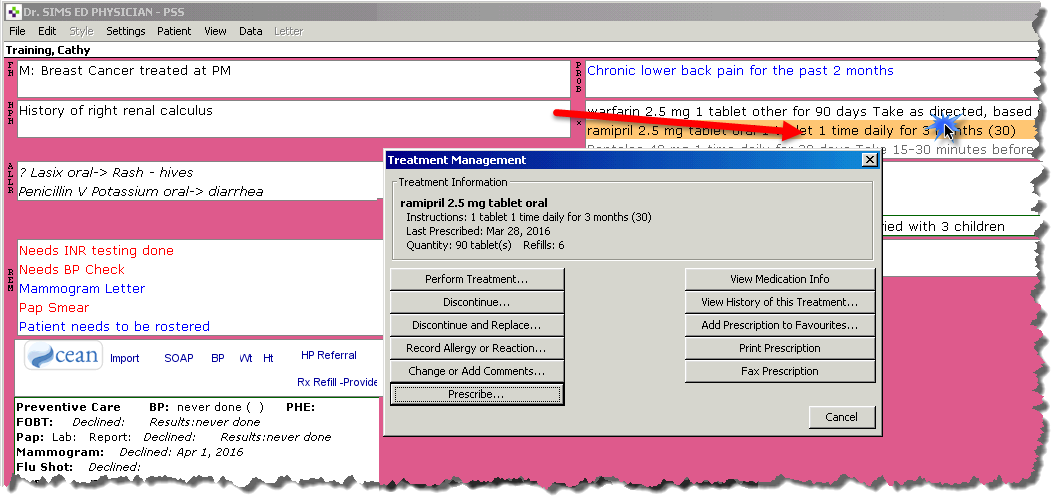
1. Double-click on the desired medication in the CPP or the Progress Note to get the Treatment Management Window
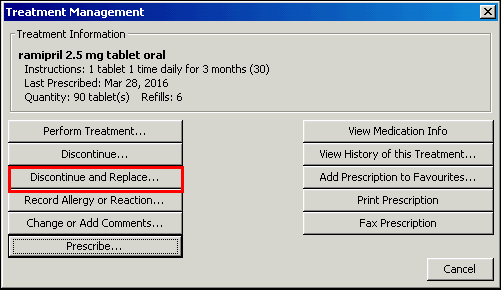
2. Select the Discontinue and Replace option
Note that the medication information appears at the top of this window
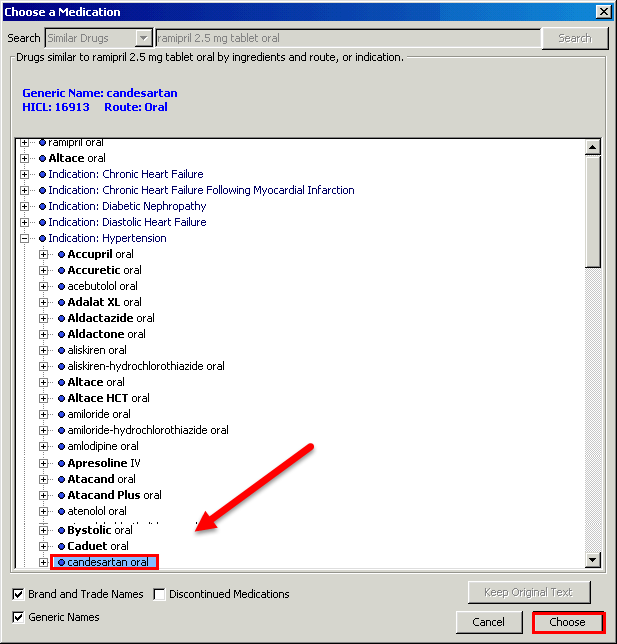
3. Select the medication to replace the discontinued product.
4. The
familiar prescription screen appears.
Fill in all fields. Add in any instructions for pharmacy in the Instructions
for pharmacy field.
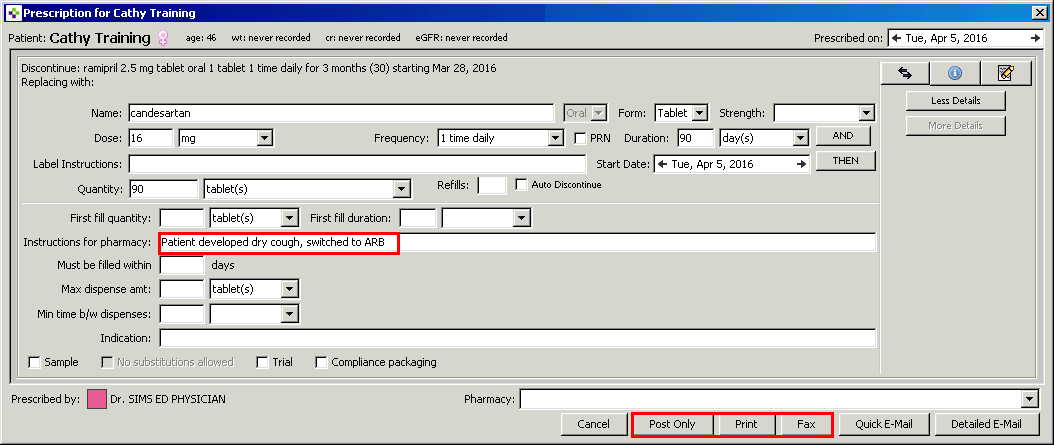
5. This is what the prescription will look like:

Learning powered by Digital Education