
For results not processed through the Lab Report Inbox, you will need to create a report to populate the preventative care toolbar.
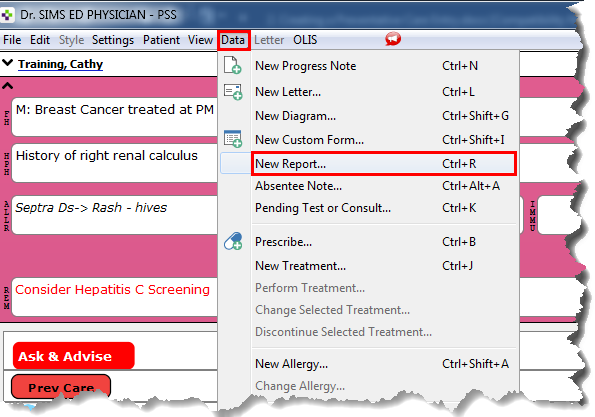
1. Select Data>New Report or CTRL + R to open the Report Window in the chart
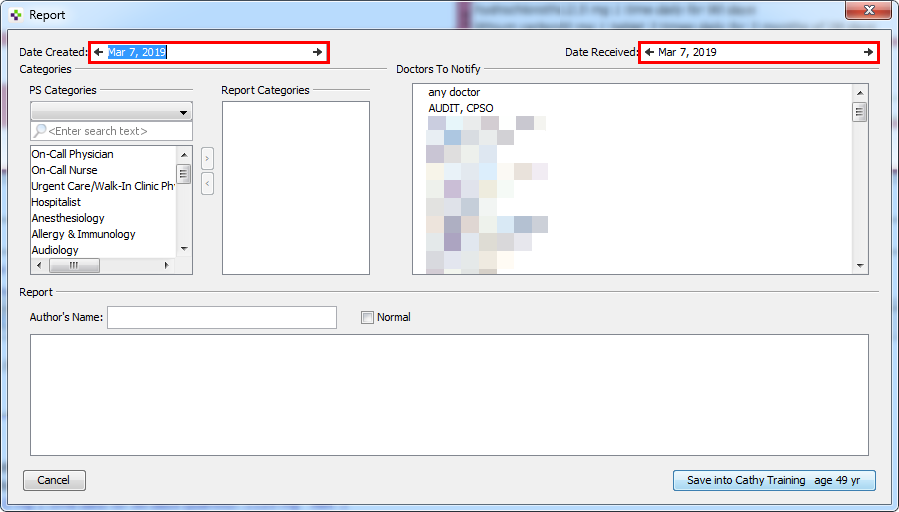
2. In the Report Window, update the following dates, as required:
· Date Created: Enter the date that the test was completed.
· Date Received: This is the date that the result was received, if this was a report coming from outside UHN. You would update this date, if required.
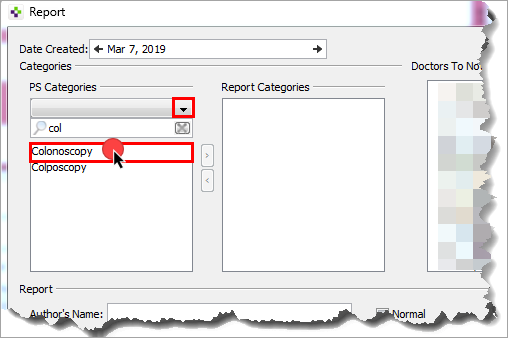
3. Choose the appropriate category by clicking on the drop down arrow, or type in the first few characters of the test. Select the desired test. If you are unable to find the test, scroll through the list to find.
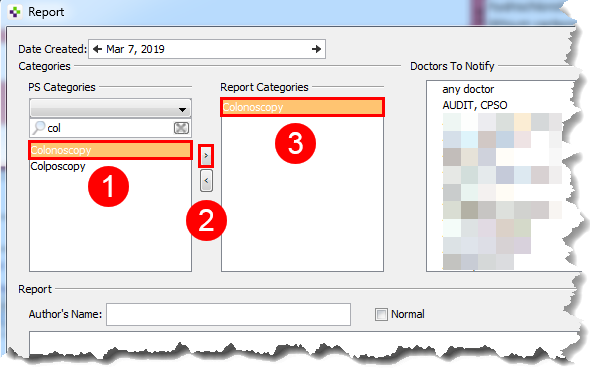
4. After selecting the test, click the right pointing arrow, in the middle of the screen. The report will now move to the Report Categories section.
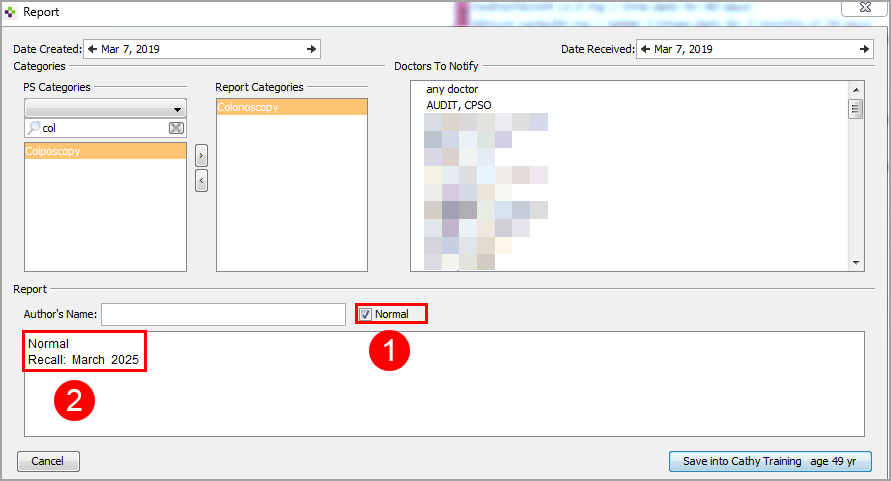
5. If the test was normal, check the normal box. The word “Normal” will now appear in the comments section.
· If abnormal, type in comments in the large text box at the bottom of the screen
· For both abnormal and normal results, enter the recall date
· If the report is being created for a Preventative Care Screening test and the recall date is outside of the current recommended guidelines, please refer to the Editing a Preventative Care Entry section to change the frequency data in the Preventative Care Tracking Tool.
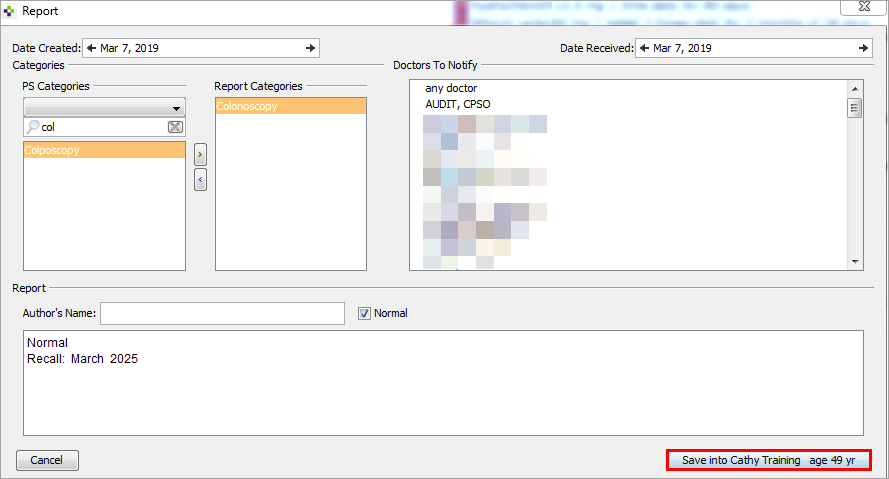
Save and verify the patient’s name (The patient’s name will display with the Save button)
6. The Preventative Care Toolbar will now be populated with the entry.
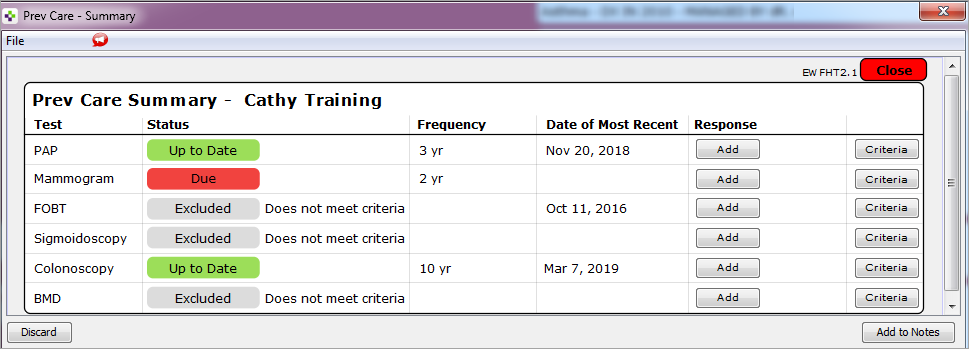
A note is also automatically added to the chart, listing the test details and entered comments.


Learning powered by Digital Education