
The appointment book will show you all the clinician/provider
appointment schedules.
From the main PSS toolbar, click on the Appointments
button to launch the Appointment Book.
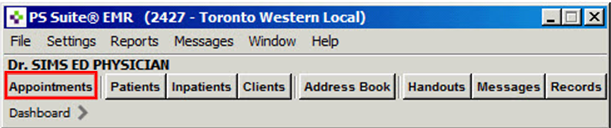
The Four Parts of the Appointment Book
Opening a Physician’s Appointment Book
Finding a Patient’s Appointment
The Four Parts
of the Appointment Book
 The
Clinician’s Name (in the top left corner)
The
Clinician’s Name (in the top left corner)
 The
Menu Bar
The
Menu Bar
 The
Action Box
The
Action Box
 The
Appointment Book
The
Appointment Book

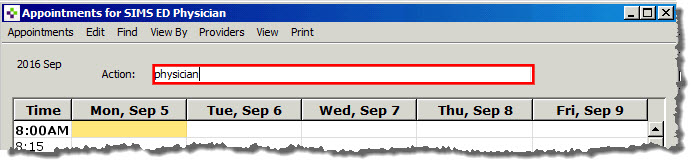
1. In
the Action Box type the name or initials of the clinician
you wish to see the appointment book
for and then select enter on your keyboard. In this example we will
search for Dr SIMS ED Physician.
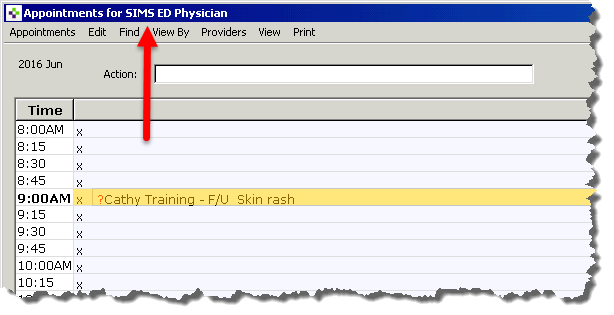
2. At
the top left hand of the appointment book you will now see the name
of the physician or
provider that you entered. Their Appointment Book displays all of
the physician/providers appointments.
The Find Menu will offer you many options to find appointments.
When searching using dates, you can enter day or month first. If
the incorrect format is
used PSS will tell you what date formats you can use.
1. Select CTRL + F to launch the Find Menu.
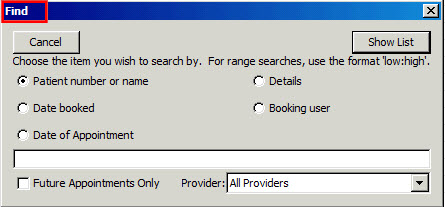
2. Enter your patient’s name and select the Show List button
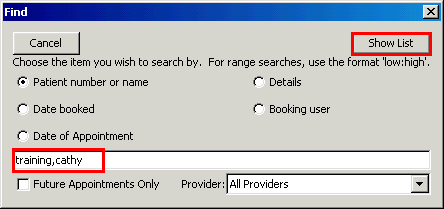
Note: You can also search by the desired provider in the bottom
right corner of the Find screen.
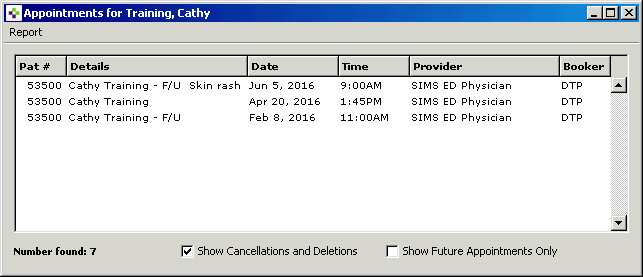
3. Your patient’s list of appointments will appear

Learning powered by Digital Education