
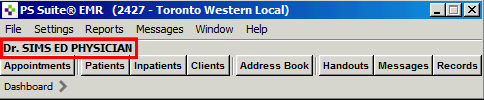
The PSS Toolbar is the “home base” for all functions. It
has a menu bar across the top, with the
user name underneath, and a row of buttons along the bottom
that allows you to access the PSS functionality.
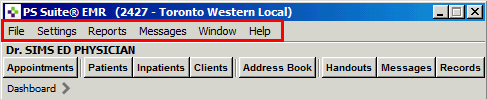
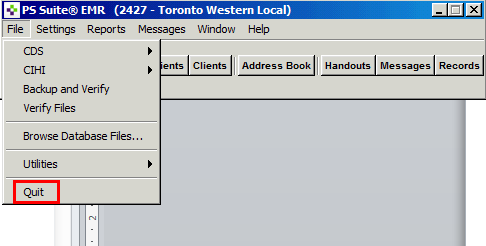
1. File - allows you to quit the application
2. Settings - allows you to perform Admin functions
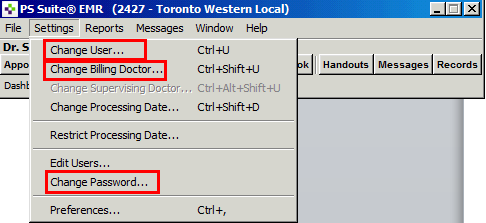
· Change User - logs the user out of the application while still keeping PSS open
· Change Supervising Doctor- allows a resident to change their supervising physician
· Change Password - allows the
user to change their password
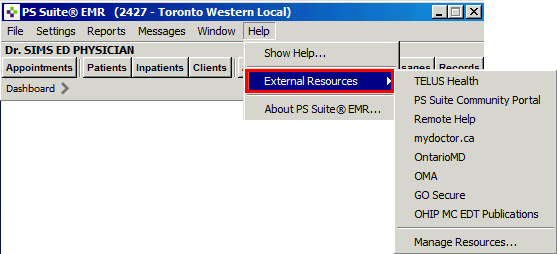
3. PSS Help - External Resources and links can be found here
Your name displays below the toolbar. Ensure that the proper
spelling of your name appears,
as this is your electronic signature. Contact your administrator
if it is incorrect.
The PSS Buttons
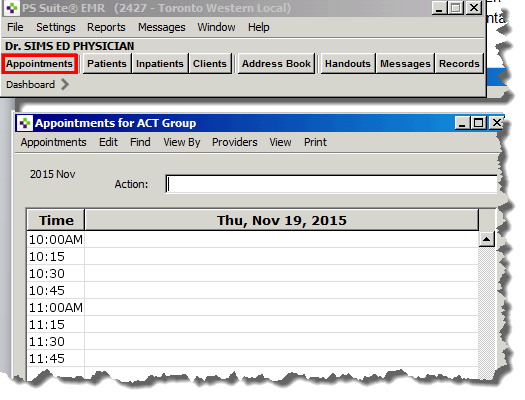
1. Appointments - opens the Appointment Book.
2. Patients - used to access patient demographic, insurance and physician information.

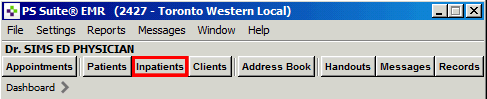
3. Inpatients - used by admin staff for billing purposes.
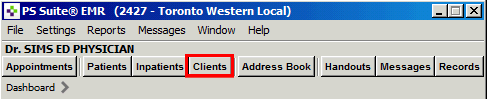
4. Clients – used for billing and Insurance Information.
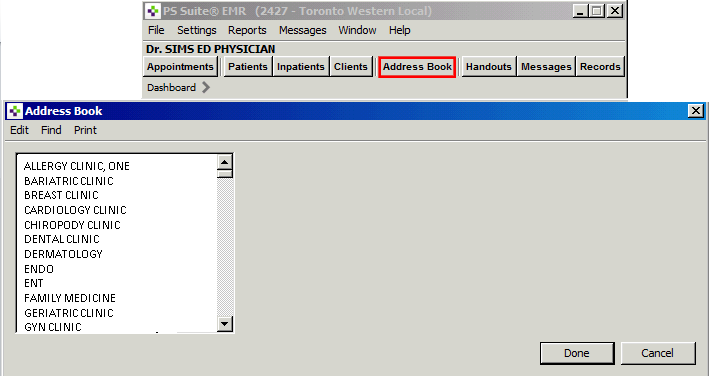
5. Address
Book – managed by the clinic secretary. This will contain
address, fax numbers and
key information for every individual/clinic referring to the clinic. If
there are errors, please inform
the secretary to update.
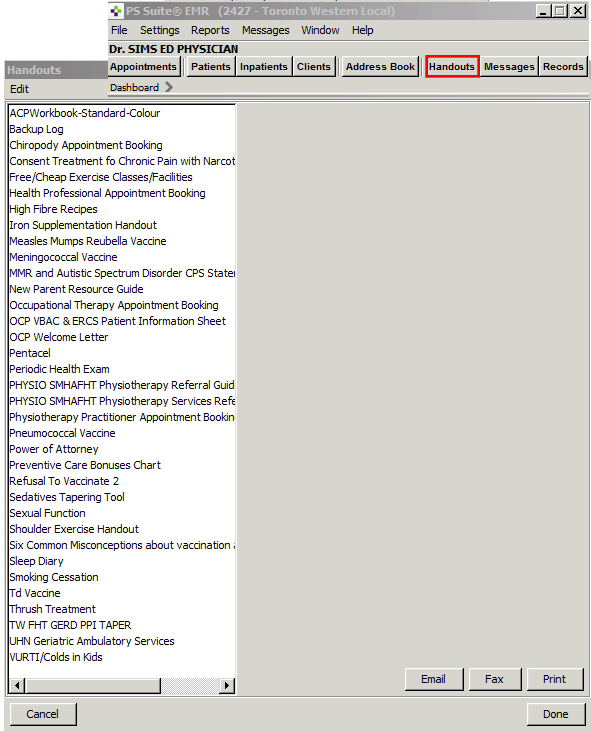
6. Handouts – electronic pamphlets in PDF from that can be printed and handed to your patient.
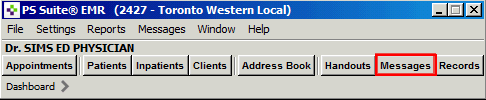
7. Messages
– opens your Messages Inbox
Messages can include information about patients among clinicians and is
a means of
communication and allows you to view, retrieve, act
on, and archive messages.
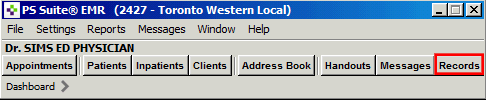
8. Records – allows you to access the patient’s record screen or progress notes.

Learning powered by Digital Education