For the latest updates, see EPR Release Notices.
For EPR related videos, check out Digital Education's YouTube Channel.
For the latest updates, see EPR Release Notices.
For EPR related videos, check out Digital Education's YouTube Channel.
Printing Physician Clinic List
The Physician Clinic List allows a Physician to print a list of patient names that have / had visits at a clinic. This will ensure that Physicians can follow-up with the patient(s) and complete documentation in the visit chart(s) as required. While active patient visits fall off the clinic list as their visits are closed or converted, this comprehensive report is always available.
Report parameters include identifying Physician, clinic, and date/time period.
To print a physician clinic list:
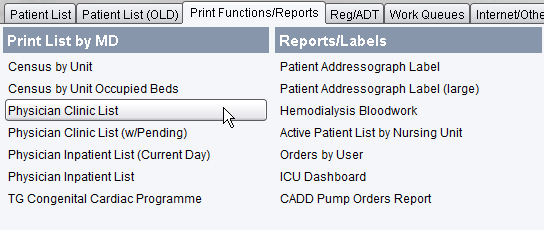
1. From the Main Desktop, Print Functions/ Reports tab, Print List by MD banner, click Physician Clinic List.
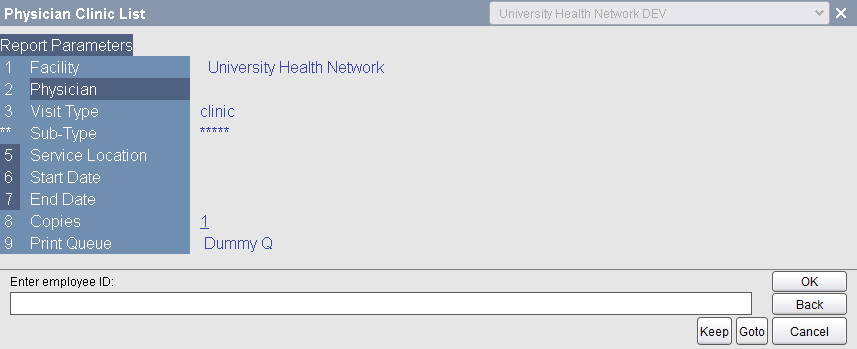
2. Enter employee ID (Physician’s last name) and click OK to search.
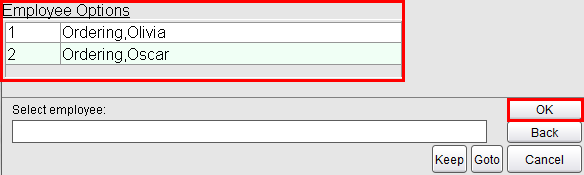
3. Select the Employee (Physician) from the list and click OK.
4. Repeat steps 2-3 to add more physicians to the report parameters, or press OK to proceed.
5. Choose Add to enter the clinic.
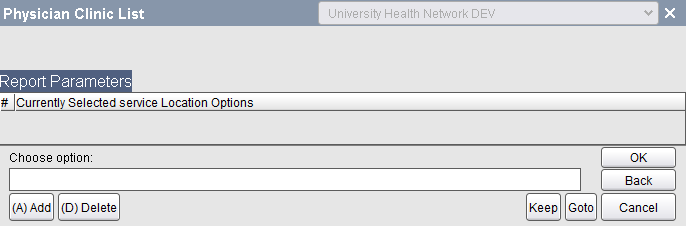
6. Select the Service location from the list and click OK.
7. Repeat step 6 to add more clinic locations, or click OK twice to proceed.
8. On the Report Parameters screen, complete mandatory fields and non-mandatory fields as applicable.
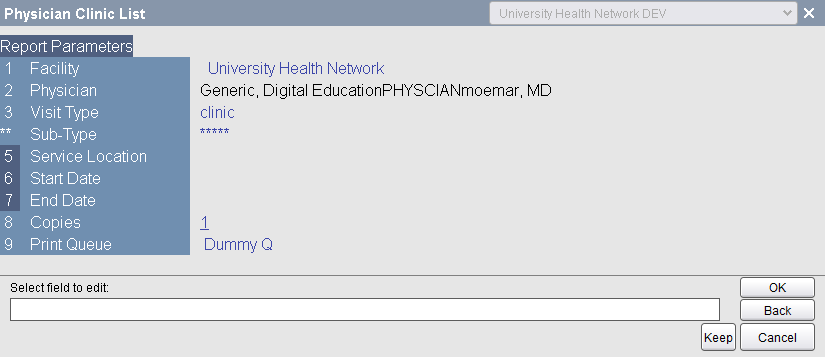
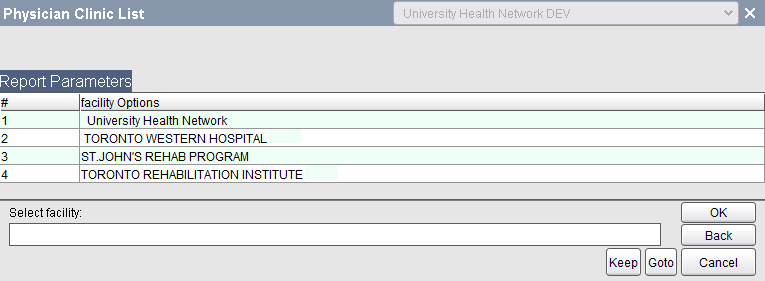
9. To view Physician Clinic Lists for TW or TR prior to Sept. 27, 2019, select the Facility field. Using the facility options list, select TW or TR.
10. Enter the start date for the report (use t for today).
11. Enter the end date for the report.
Note: As an example, to run a report for September 1 to September 9, enter September 1 as the Start Date and September 9 as the End Date.
12. Enter the number of report copies you want to print and click OK.
13. Choose Accept.
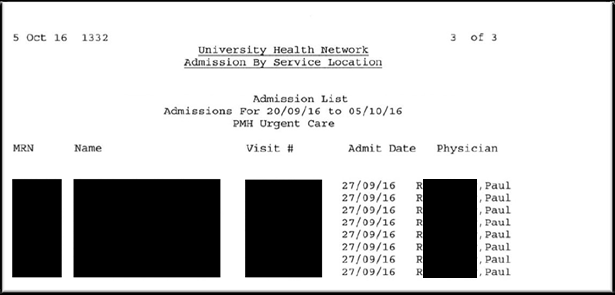
This will generate a printout with information on the patient name, MRN, visit number, date of visit, and physician name.