
For the latest updates, see EPR Release Notices.
For EPR related videos, check out Digital Education's YouTube Channel.
For the latest updates, see EPR Release Notices.
For EPR related videos, check out Digital Education's YouTube Channel.
Insulin Correction Scale
1. Select the medication that you would like to document and click OK.
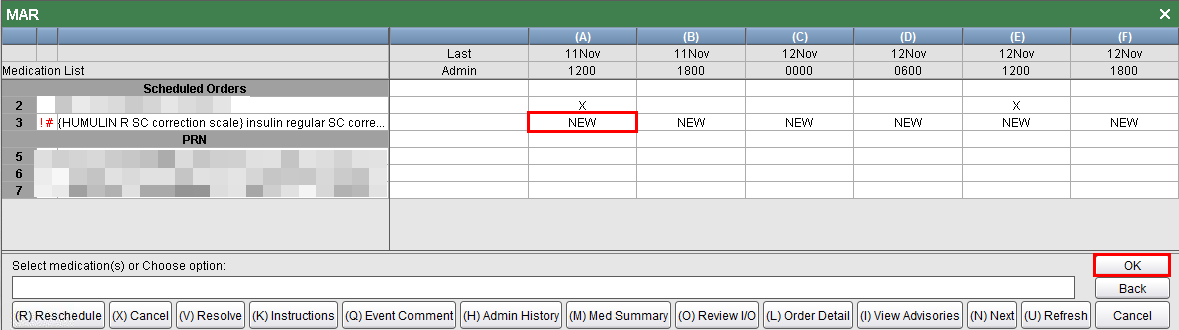
2. Enter the date and time that the medication was administered and click OK.

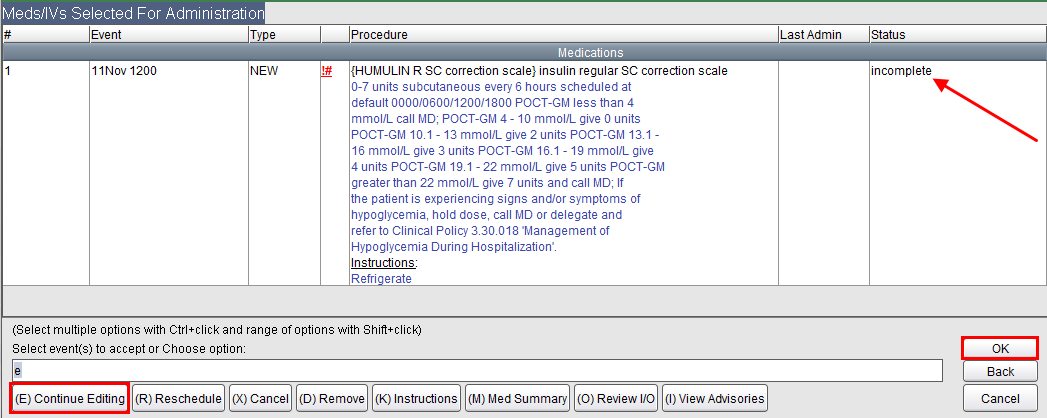
3. Since the status is incomplete, you must choose to Continue Editing, select the item and then click OK.
4. Select a dose option from the list, as indicated from the sliding scale and click OK (the sliding scale pictured below is revised from time-to-time).
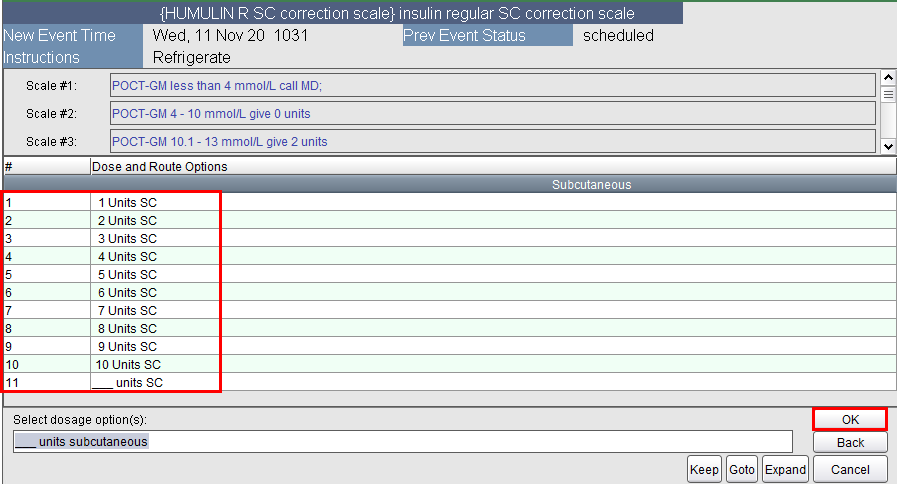
Note:
if no insulin was administered,
a dose of 0 would have been entered and the Site field would be
hidden.
5. From the Product Specification screen, choose Accept Auto-Selection (the dosage selected below does not necessarily reflect medical practice but is for training purposes only).
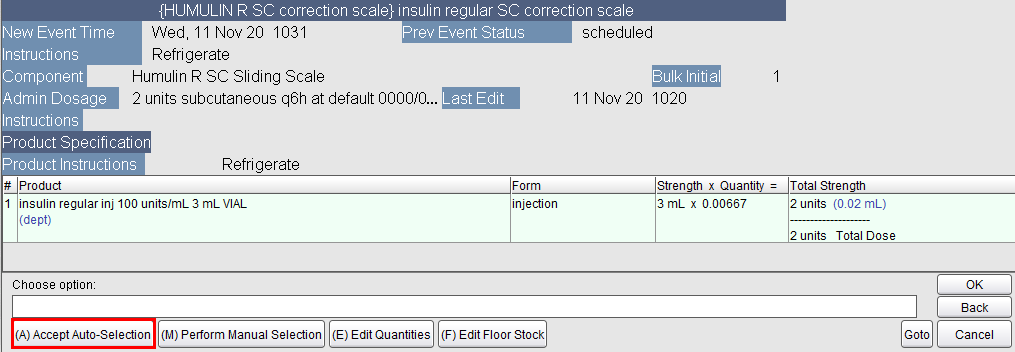
Note: Choose the Perform Manual Selection option button if you need to select a different product.
6. Select the appropriate administration site from the list and click OK.
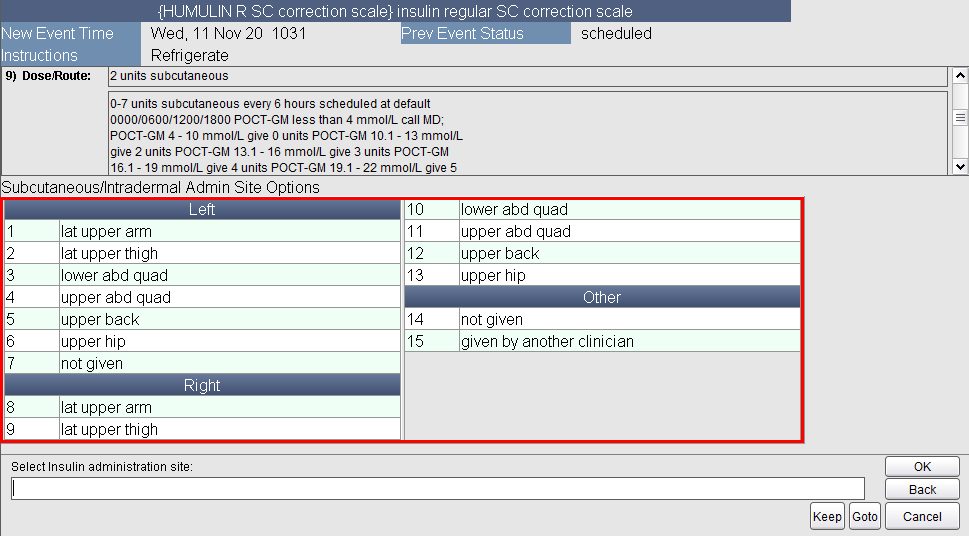
7. Enter the name of the clinician who verified the dose in the Verified by field and click OK.
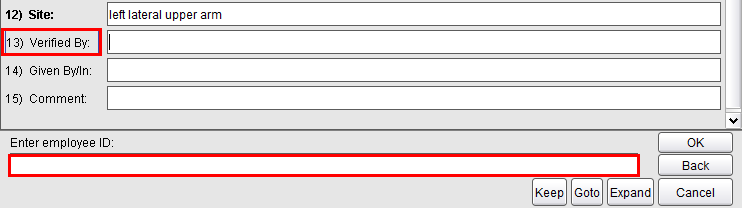
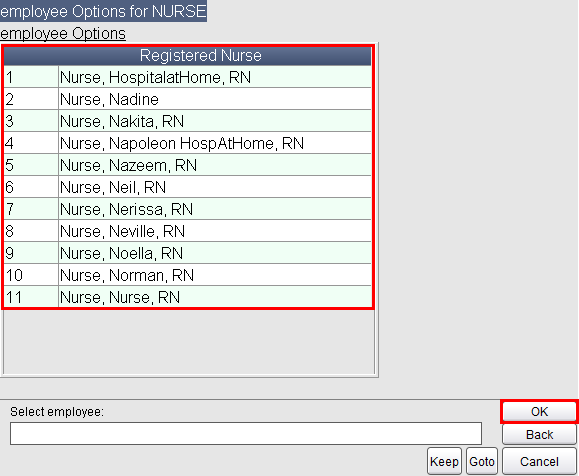
8. Select the verified by employee from the list and click OK. In this example, the employee search entered was last name. The more detailed information you provide, the shorter the select list will be.
9. No additional edits are necessary, click the OK button to continue.
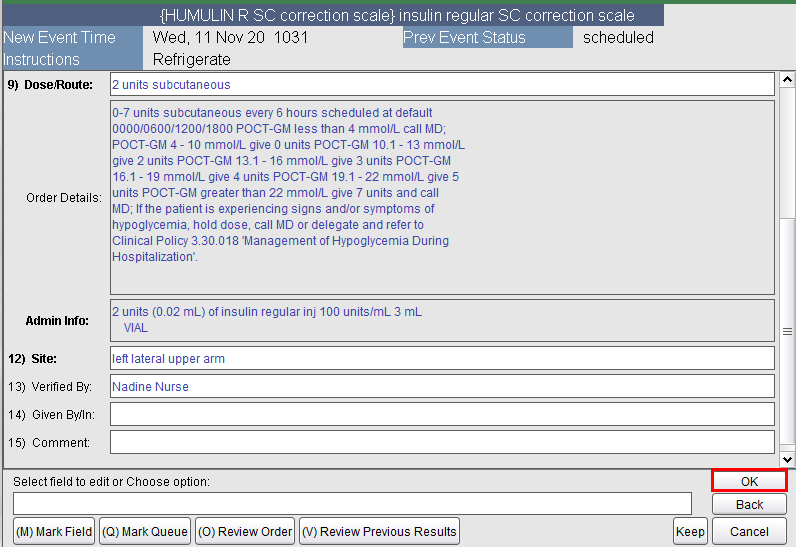
10. If there are no other edits, click OK.
11. Choose Administer All.

12. Choose Accept.