
For the latest updates, see EPR Release Notices.
For EPR related videos, check out Digital Education's YouTube Channel.
For the latest updates, see EPR Release Notices.
For EPR related videos, check out Digital Education's YouTube Channel.
Transfer Note
Covered in this topic:
There are currently two transfer note options - ED Nursing Transfer Note or IP Nursing Transfer Note. ED Nursing Transfer Note will be used in this example.
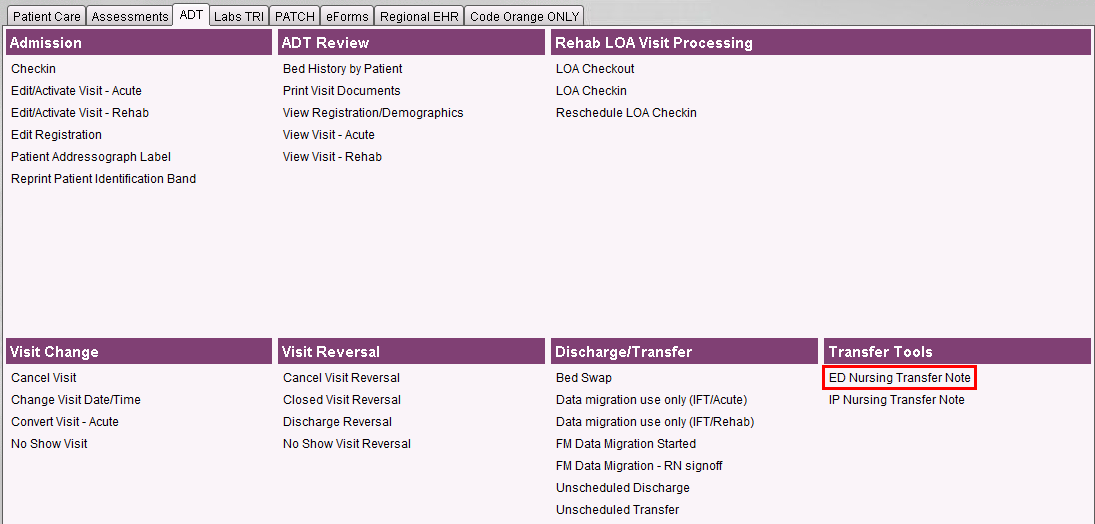
1. On the Patient Desktop click the ADT tab.

2. Click ED Nursing Transfer Note under the Transfer Tools header.
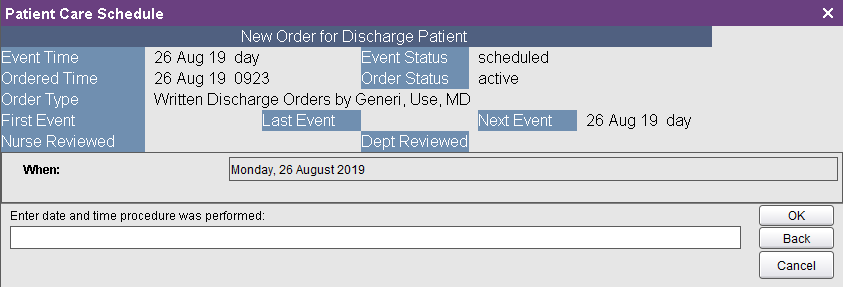
3. Enter the date and time the unscheduled procedure was done and click OK. In this example, the default of now has been accepted.
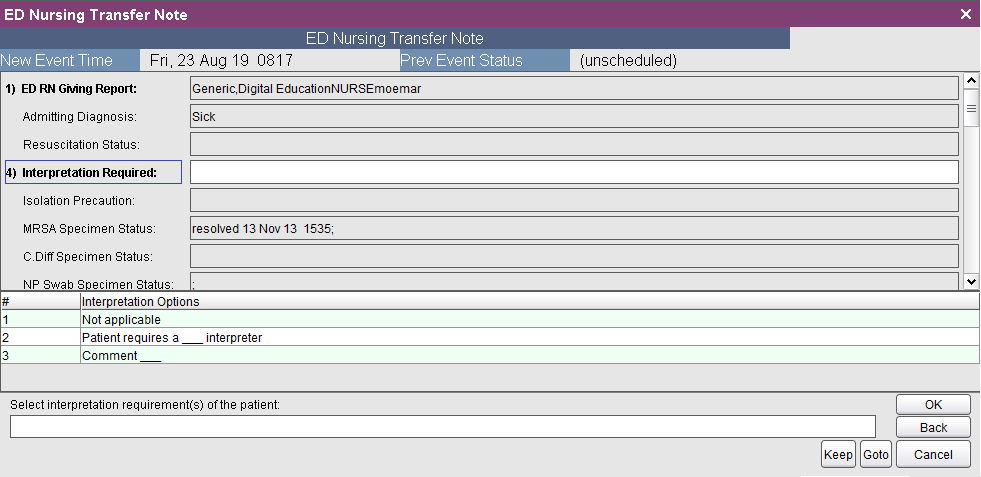
Field 1 defaults to the name of the RN currently logged into EPR.
Complete all mandatory fields. Complete all non-mandatory fields as applicable, entering any additional information you have.
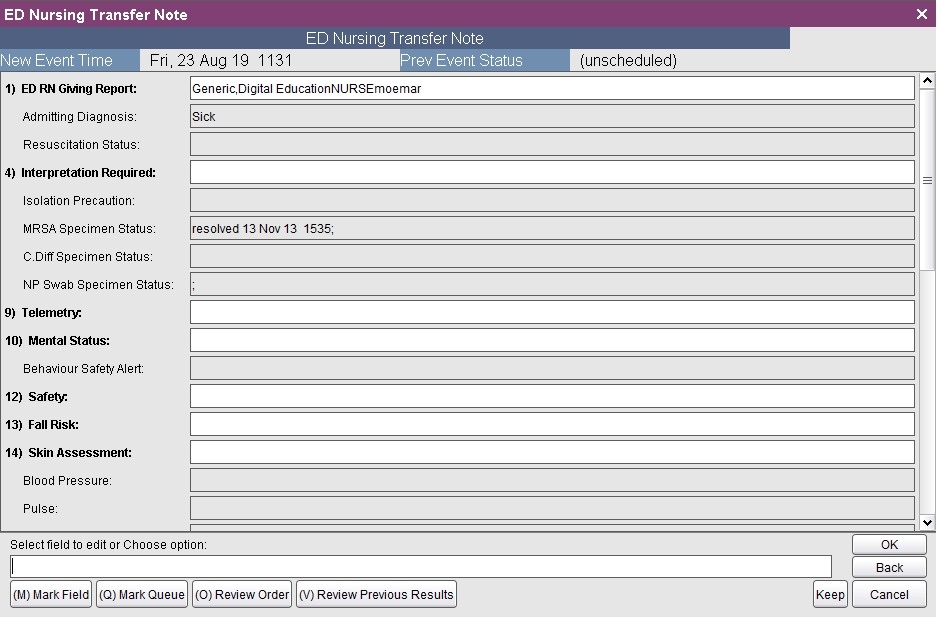
4. Choose (A) Accept.
If an Emergent situation arises while the clinician is completing the Transfer note, the note can be saved without completing all of the mandatory fields.
1. At the bottom right of the screen click on GoTo.

2. Select the last field on the note Save as Complete and choose No.

3. Click OK.
4. Choose (A) Accept.
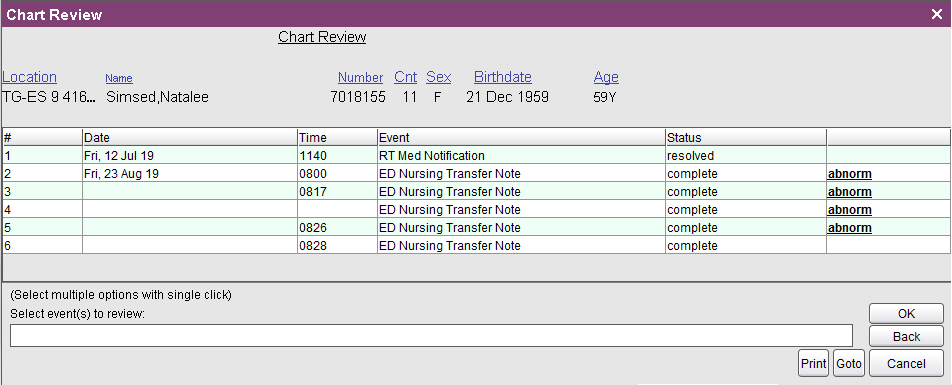
Note: If a Transfer Note is saved as incomplete, it will appear in Chart Review as abnorm and must be fully completed before the patient is transferred.
To return to the ED/GIM Transfer Note to either complete a partially finished note,
or to update the status of a complete note, follow the same directions as for a new note.
1. On the Patient Desktop click the ADT tab and select ED Nursing Transfer Note.
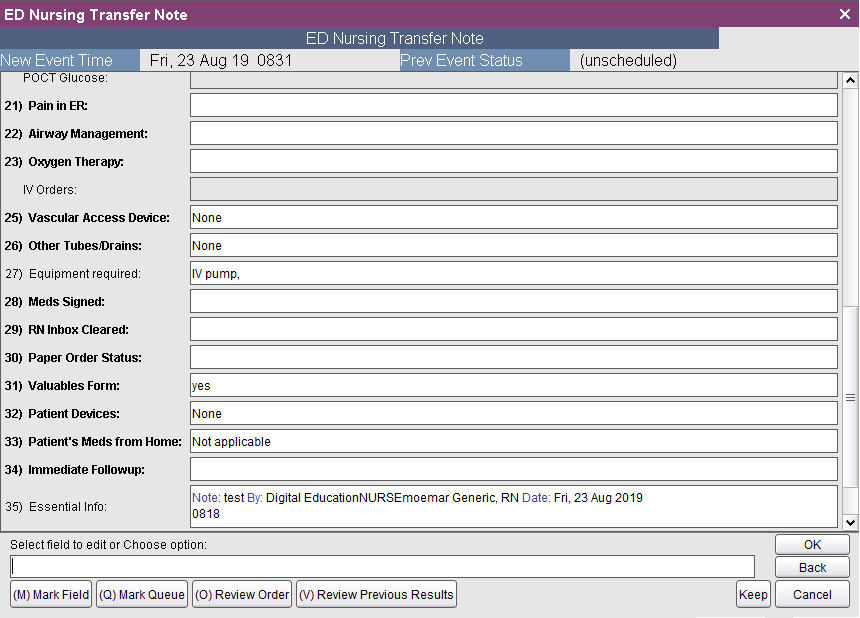
2. When returning to a Transfer Note that has been previously saved as complete, some fields will need to be repopulated (e.g. Pain in EPR) regardless of whether they are populated in the initial note. Once completed, choose Accept to save your work.
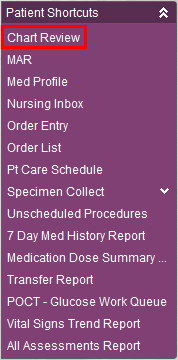
1. On the Patient Desktop click Chart Review.
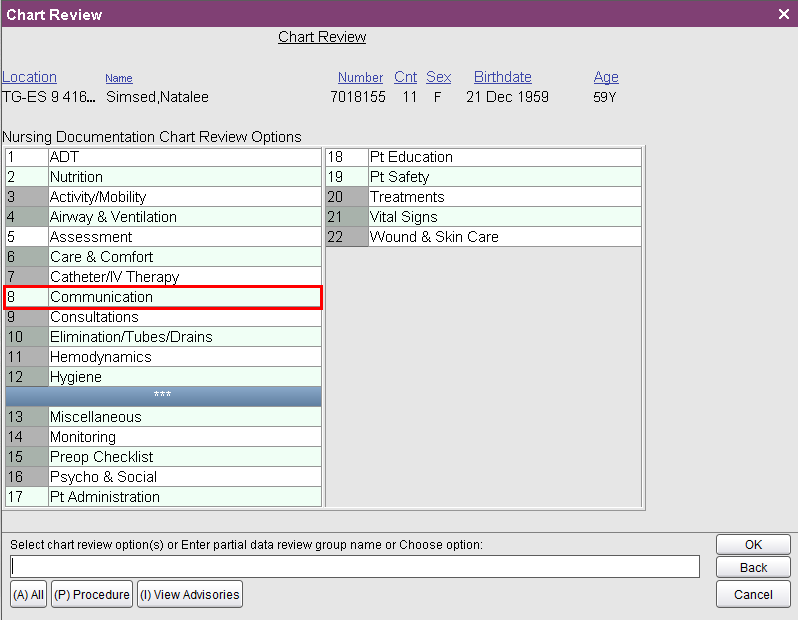
2. Select Nursing Documentation.

3. Select Communication.
4. Select the ED Nursing Transfer Note.
Take note of the scroll bar to review the full note
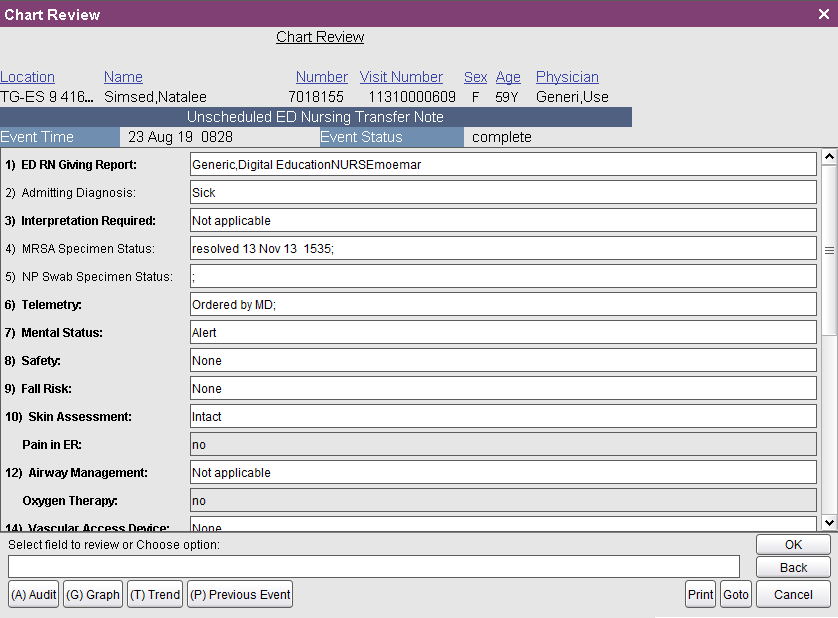
5. From the bottom right of the screen click on Print if you require a paper copy.
