Printing the Change History for Chemo Order Report
The Change History for Chemo Order report will include order information and a change history log located at the bottom of the report, which includes any changes made to the orders with a time and date and the person who made the change.
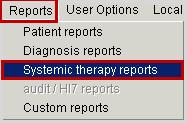
1. From the main OPIS menu, select Reports and Systemic therapy reports.
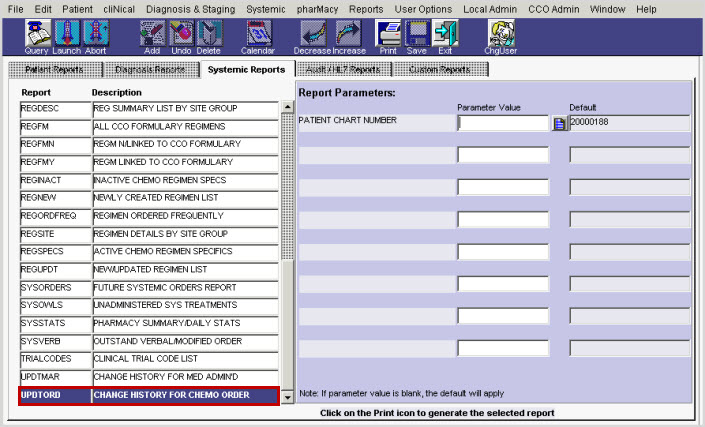
2. Using the scroll bar, scroll down and select the CHANGE HISTORY FOR CHEMO ORDERreport.
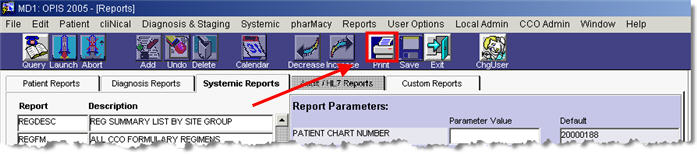
3. By default, the MRN of the last patient you work with will be in your search options. Click the Print icon on the main OPIS toolbar.
Note: If you need to change your search options, click in the parameter value box and click the LOV button to enter your new search details.
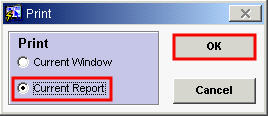
4. Select the Current Report option and click OK.
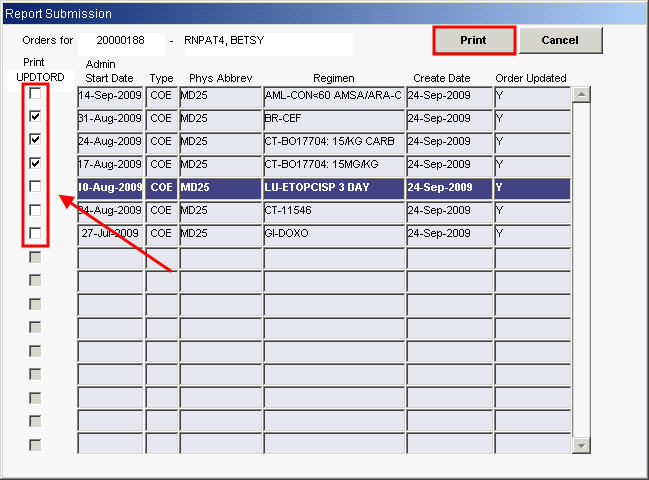
5. Select the regimen(s) you want to print and click Print.
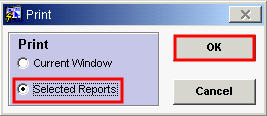
6. Ensure that Selected Reports is checked off and click OK.
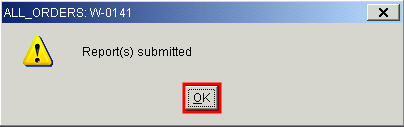
7. The Report(s) submitted message will appear on screen. Click OK.
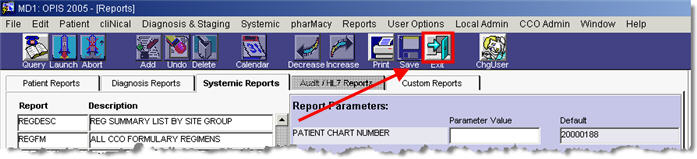
8. Click the Exit button on the toolbar when you are done.